The Case for Extending Rather Than Replacing
Consumer technology is often marketed with the implicit message that newer is always better. In some domains, that's true. In laptops, the performance improvements from one generation to the next have moderated significantly compared to the rapid advances of a decade ago. A well-maintained three-year-old laptop with an SSD and sufficient RAM may outperform a brand-new budget machine in everyday tasks.
There's also an environmental and financial dimension worth considering. Manufacturing electronics is resource-intensive. Extending the productive life of a device by two or three years reduces the environmental footprint of your computing — and keeps several hundred to a few thousand dollars in your pocket rather than a manufacturer's revenue column.
The strategies in this article are drawn from years of hands-on experience with machines that came in underperforming and left refreshed — and from watching customers return years later with the same machine, still running well.
The Highest-Impact Hardware Upgrade: Replace the Drive with an SSD
If your laptop is more than four years old and still running the mechanical hard disk drive it came with, a solid-state drive upgrade will likely have a more dramatic effect on your experience than any other single change. The performance difference between spinning-platter storage and solid-state flash memory is not incremental — it's transformative in everyday use.
Boot times that used to take two or three minutes drop to fifteen to thirty seconds. Application launches that required watching a progress bar now happen nearly instantly. File operations that used to cause the drive activity indicator to spin for minutes complete in seconds. The reason is fundamental: mechanical drives are limited by physical rotation speeds and seek times. SSDs have no moving parts and access data electronically, at speeds that are typically ten to thirty times faster for the operations most users perform.
Technical Note
Most laptops manufactured before 2018 use a 2.5-inch SATA drive bay. SATA SSDs are affordable, widely available, and easy to install. Newer laptops may use M.2 slots supporting NVMe drives, which are faster still. A technician can confirm compatibility before purchase.
When we perform an SSD upgrade, we clone the existing drive so the customer receives their machine back exactly as they left it — same files, same applications, same settings — just running dramatically faster. The upgrade typically takes a few hours and the results are consistently among the most appreciated improvements we offer.
Add or Upgrade RAM Where Possible
Random Access Memory is where your computer holds the data it's actively working with. When RAM is insufficient for your workload, the operating system begins using storage as a substitute — a process called paging or swapping. Even with an SSD, this is significantly slower than actual RAM, and the effect on system responsiveness is noticeable.
Laptops sold at entry-level price points often include 4GB or 8GB of RAM. For modern operating systems running a browser with multiple tabs, a productivity suite, and common background services, 8GB is the practical minimum and 16GB provides comfortable headroom for most users.
It's important to note that not all laptops have upgradeable RAM. The trend in recent years toward soldering RAM directly to the motherboard means that many ultrabooks and thin-and-light models do not allow RAM upgrades. For machines that do support upgrades, the improvement in multitasking performance can be substantial. We can check whether your specific model supports upgrades before you invest in components.
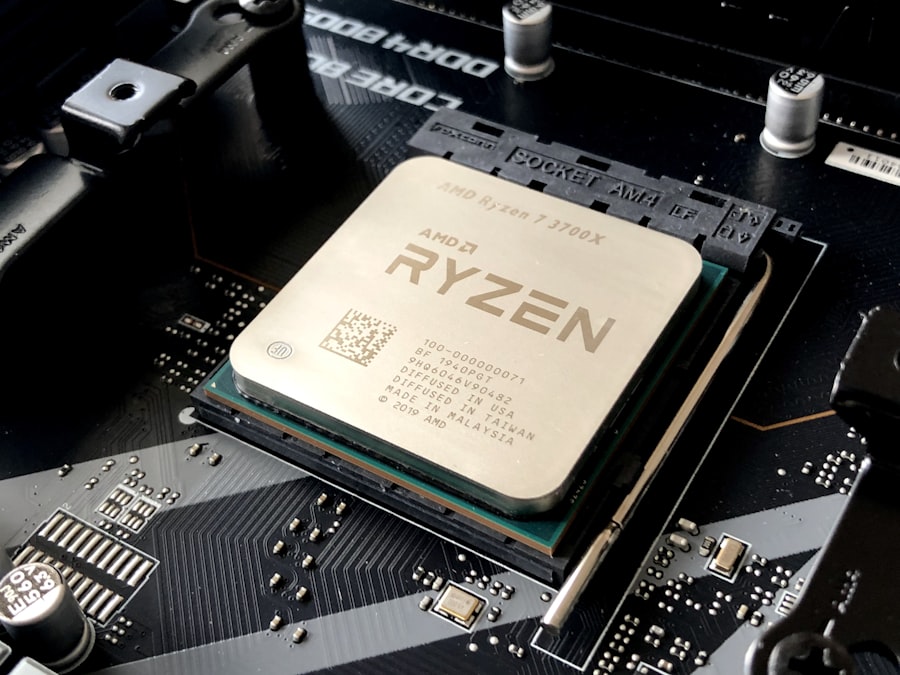
Adding RAM remains one of the most cost-effective ways to improve performance on compatible laptops.
Replace the Battery Before It Becomes a Problem
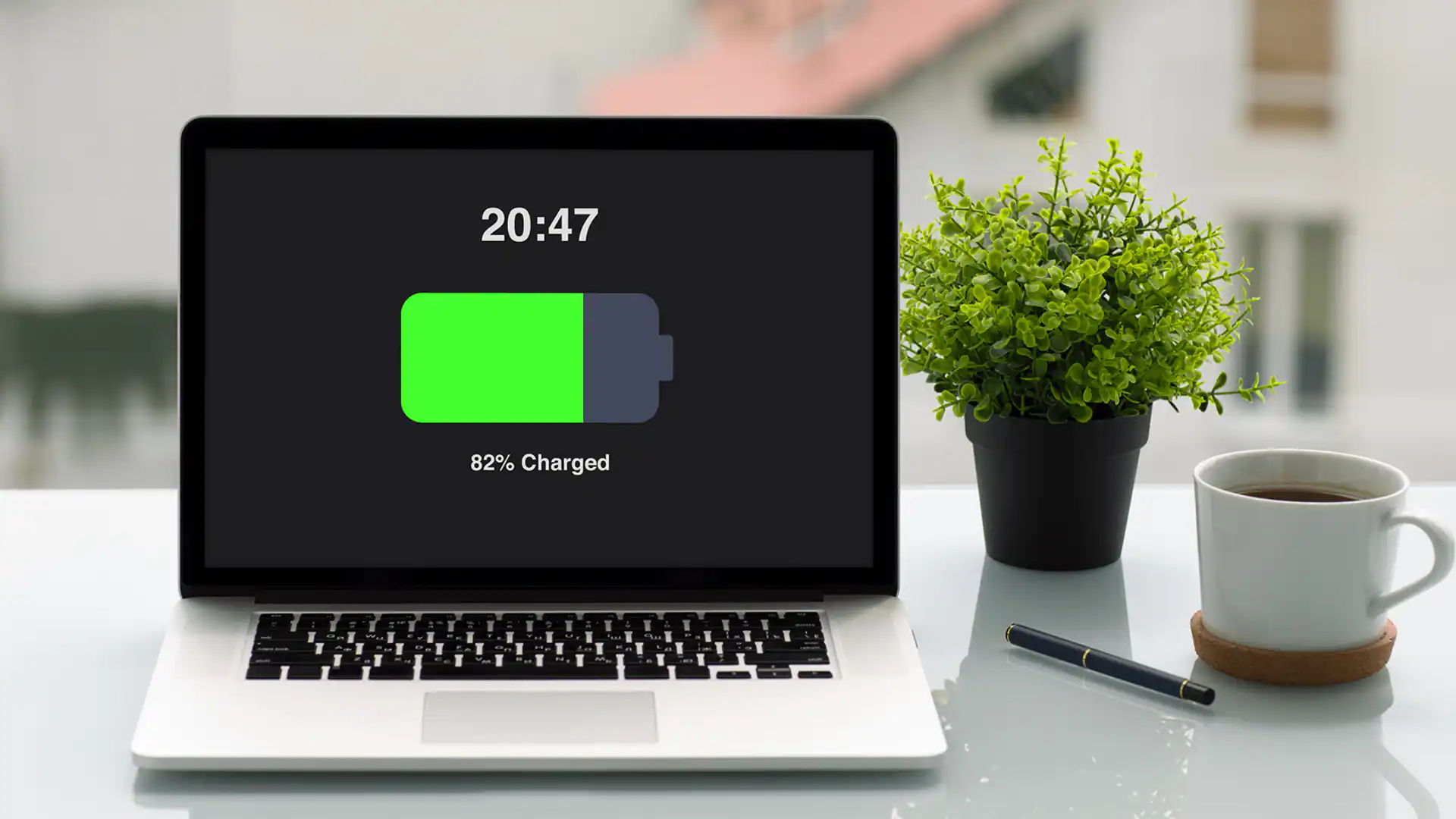
A diminished battery changes how you use your laptop. A machine that used to go with you anywhere becomes a device that needs to stay near a power outlet. Over time, severely degraded batteries can also cause issues beyond shortened runtime: they may cause the laptop to shut down unexpectedly at moderate charge levels, or in rare cases, a failing lithium-ion cell can swell, causing pressure that warps the chassis or trackpad.
Battery replacement is a routine repair that restores the original intended portability of your machine. We recommend considering replacement when capacity falls below about 75–80% of original design capacity, which typically occurs after two to four years depending on usage patterns. Replacement batteries using quality cells are available for the vast majority of laptops, and the repair is usually completed within a day.
Keep the Operating System Lean and Current
Software accumulation is one of the quietest drains on laptop performance. Every application installed potentially adds background services, startup entries, scheduled tasks, and file associations that consume resources. Over years of use, a laptop's software environment can become significantly heavier than it needs to be.
A Periodic Software Audit
Once or twice a year, review the applications installed on your machine and uninstall anything you no longer use. On Windows, check Programs and Features in the Control Panel or Apps in Settings. On macOS, review the Applications folder and check Login Items in System Settings. Remove browser extensions you don't actively use.
Managing Background Services
Many applications install services that run continuously in the background, often without the user's knowledge. Antivirus software, cloud sync clients, hardware monitoring tools, and manufacturer utility software are common examples. While some are useful, others consume CPU and memory for marginal benefit. Task Manager on Windows (or Activity Monitor on macOS) can help identify which background processes are consuming significant resources so you can make informed decisions about disabling or removing them.
Staying Current with Updates
Operating system updates should be applied promptly. Beyond security patches, updates often include performance improvements and compatibility fixes that benefit everyday use. The same applies to drivers — particularly graphics, network, and chipset drivers — which are updated regularly by manufacturers.
Invest in Physical Protection
Physical damage is the leading cause of premature laptop retirement. A single drop that cracks a screen, a spill that reaches the motherboard, or a hinge that breaks from improper handling can render an otherwise functional machine non-operational. Physical protection is cheap compared to the cost of repair or replacement.
- Use a quality padded bag or sleeve. A bag with a dedicated, padded laptop compartment provides meaningful protection against the inevitable bumps and jostles of daily carry. Thin sleeves offer good protection against scratches and minor impacts.
- Consider a hard case for travel. If you travel frequently, a hard shell case for your specific laptop model provides significantly better drop protection than a soft sleeve.
- Use a screen protector. Thin, optically clear screen protectors protect the anti-reflective coating and glass from scratches and minor impacts without meaningfully affecting display quality.
- Be thoughtful about work surfaces. Avoid working on surfaces that can introduce debris into vents, trap heat beneath the machine, or expose the laptop to liquids.
Use External Peripherals to Reduce Wear
The components that fail most often in laptops — keyboards, touchpads, and screens — are also the ones subject to the most daily wear. If you regularly work at a desk, connecting external peripherals reduces wear on these components and typically provides a more comfortable working experience as well.
An external keyboard and mouse protect the built-in keyboard from key mechanism wear and spill risk. An external monitor reduces reliance on the built-in display and allows you to work with the laptop lid closed, which also reduces hinge stress. A USB hub lets you connect peripherals through a single connection rather than repeatedly plugging and unplugging from the laptop's ports, reducing port wear.

A simple desk setup with external peripherals protects the laptop's built-in components from daily wear.
Address Problems Early
This principle may be the most important in terms of cost and longevity. Problems that are addressed when first noticed tend to be simpler and less expensive to resolve than problems that are allowed to develop. A fan that starts making noise may need cleaning; ignored, it may eventually fail, and a laptop running without proper cooling will damage other components. A key that's starting to feel sticky may need the mechanism cleaned; ignored, liquid corrosion can spread to adjacent circuits.
Develop the habit of paying attention to your laptop's behavior. Changes in fan behavior, boot time, battery life, and application performance are all signals worth noting. When something changes noticeably, investigate rather than wait.
Know When a Professional Assessment Is Worthwhile
Some maintenance tasks are genuinely within reach of a careful non-technical user: cleaning vents with compressed air, managing software, adjusting settings, and performing basic troubleshooting. Others — internal cleaning, thermal paste replacement, drive upgrades, battery replacement — benefit from professional handling, either because they require specific tools or because the risk of damage from incorrect technique outweighs the cost of professional service.
A one-time professional tune-up every two to three years — covering internal cleaning, thermal paste replacement, a battery health check, and a software audit — is an investment that typically pays for itself in extended device longevity and sustained performance.
Ready to Give Your Laptop More Years?
We offer SSD upgrades, RAM upgrades, battery replacements, and comprehensive tune-ups for most laptop brands and models. Bring your machine in and we'll provide an honest assessment of what would benefit it most.
Schedule a Consultation